
In Getting Started: Part 1, we looked at setting up your school, students, courses, and assignments. We also looked briefly at Scholaright‘s basic grade report. We will look a little more in-depth at that report and others, including quarterly reports, attendance, and transcripts.
Progress Dashboard
This is probably the view you will work with most. You can access this dashboard in two ways:
Option 1: Go to Students and then click View Grades next to the student you want to see
Option 2: Click Grades and then choose the student’s name from the drop-down
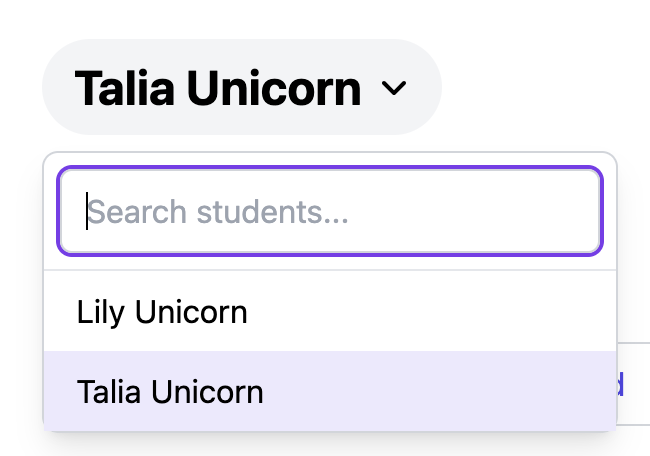
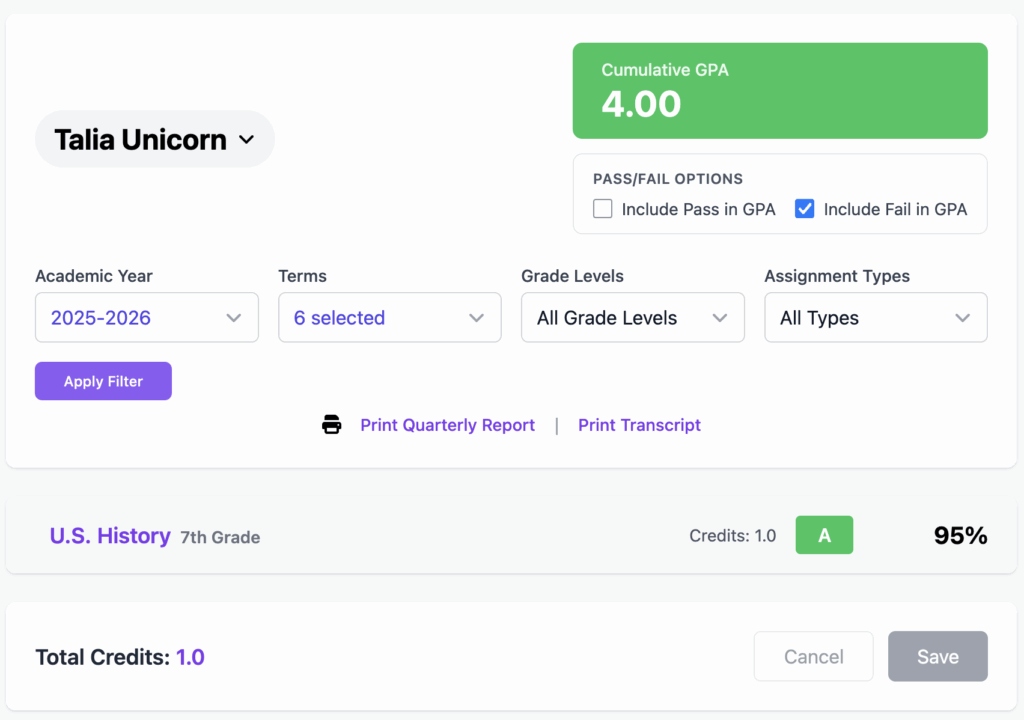
When you first enter the progress dashboard, it will shows courses and a GPA for the current academic year, including all courses, grade levels, and assignment types. If you want, you can adjust the filter to include all or some academic years. You can also filter down to specific terms, etc. Just hit Apply Filter to see the updated information.
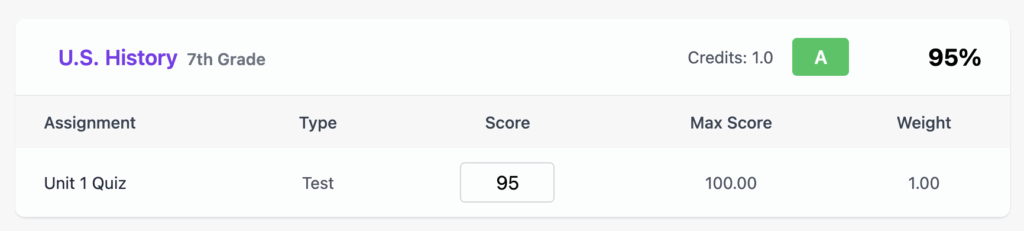
A handy tip: clicking on the course name here (e.g.: U.S. History) will expand the assignments for this student where you can quickly update grades.
Quarterly Report
You may educate in a state that requires quarterly reports. If so, you can quickly get a print-ready report from the basic grade report screen. Adjust your filters to show only the courses and quarter(s) you want to include in the report, and then click Print Quarterly Report.
If everything looks good, click Print Report.
Transcripts
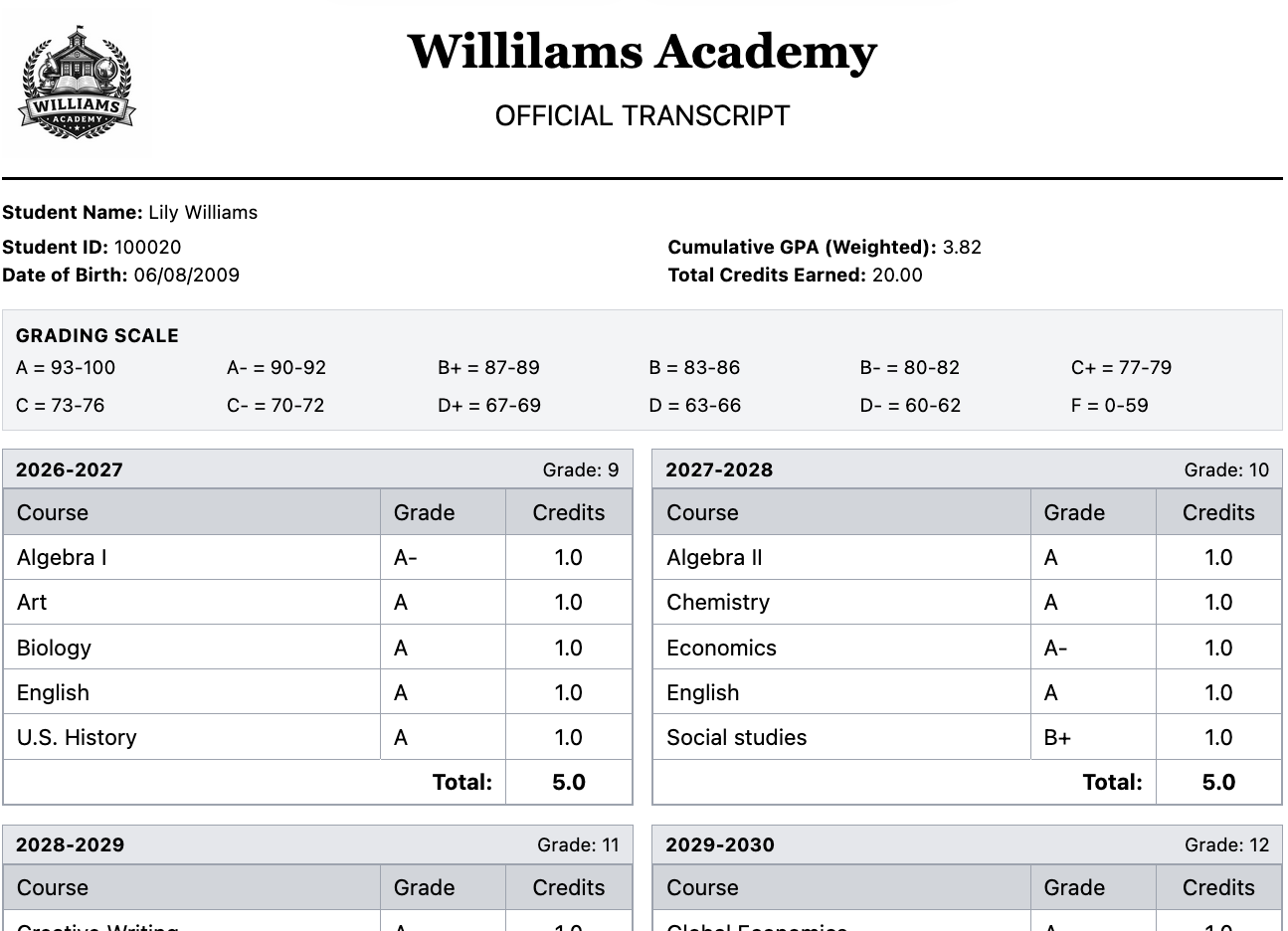
You get to Transcripts from the same screen as the basic grade report. Simply click the Print Transcript link. This will take you to a screen where you can select which grade levels to include, and which paper size your transcript should be.
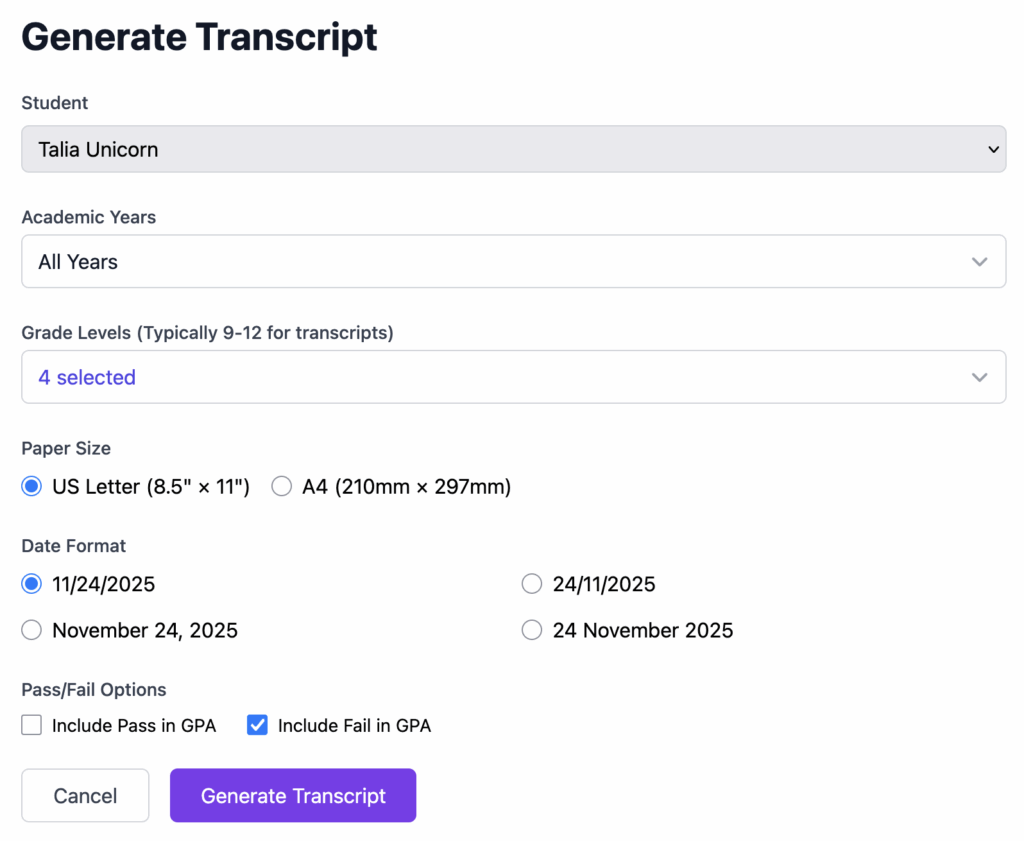
Note that only grade levels 9-12 are selected by default, since this is the most common requirement for transcripts. So if you don’t see courses you expect on the transcript, be sure to select all the grade levels you intend to include.
A special note about Pass/Fail Options:
For most schools, a pass/fail course only impacts GPA when the course is failed. In other words, a grade of “passed” has no impact on GPA, but a grade of “failed” will count as a 0 towards the GPA. A “passed” course still counts as credits earned, but does not help the student’s GPA. Scholaright allows you to toggle those options to fit your needs.
When you’re ready, click Generate Transcript
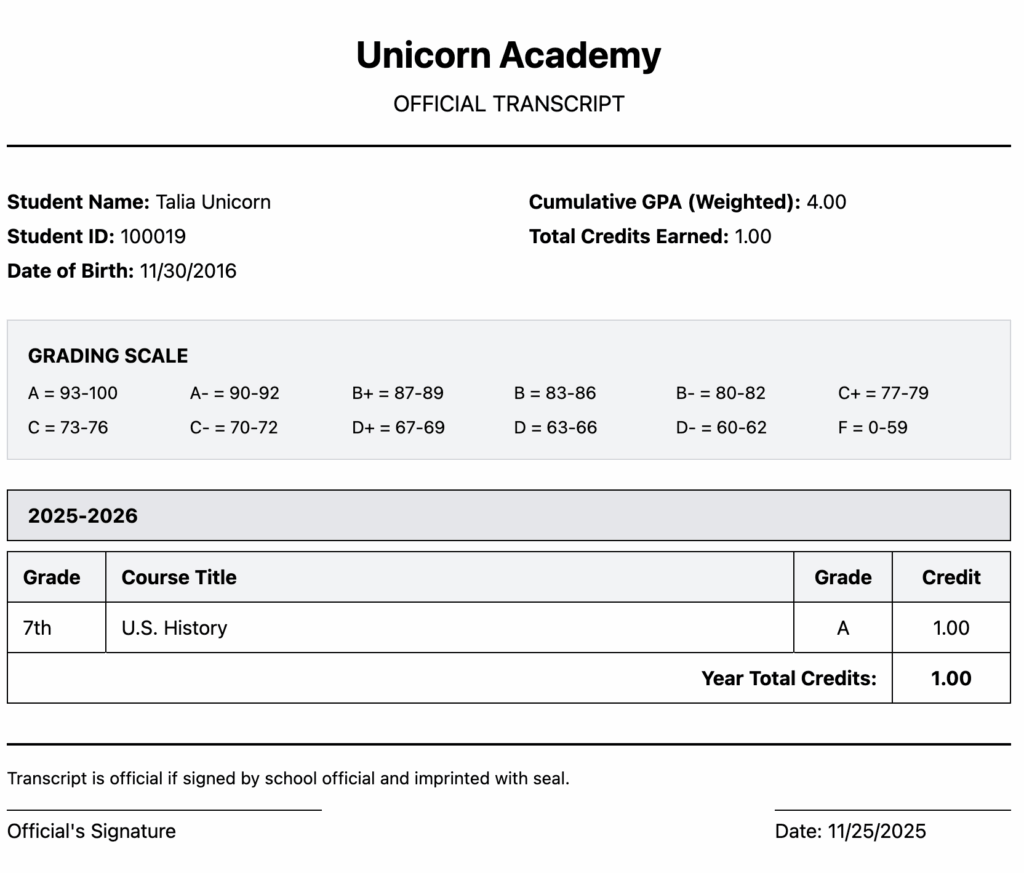
You can now print your transcript.
Attendance
Some states require daily attendance tracking for students. Scholaright offers some simple ways to do this.
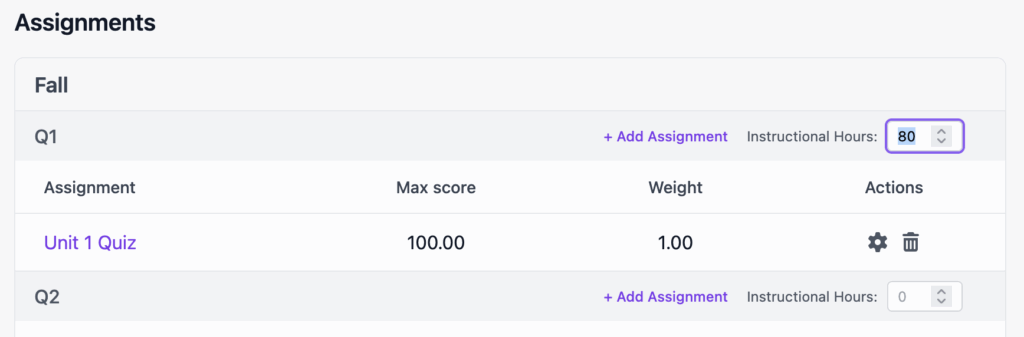
First, for state’s that require a certain number of instructional hours, you can fill in the hours on the term or quarter in a course (note: if you have quarters, you will see an area to enter hours on the quarter; otherwise, this will appear on the term).
To track your students’ actual attendance, click Attendance Tracking on the left. Navigate to the month you want to log attendance in using the left and right arrows, and check the appropriate boxes:
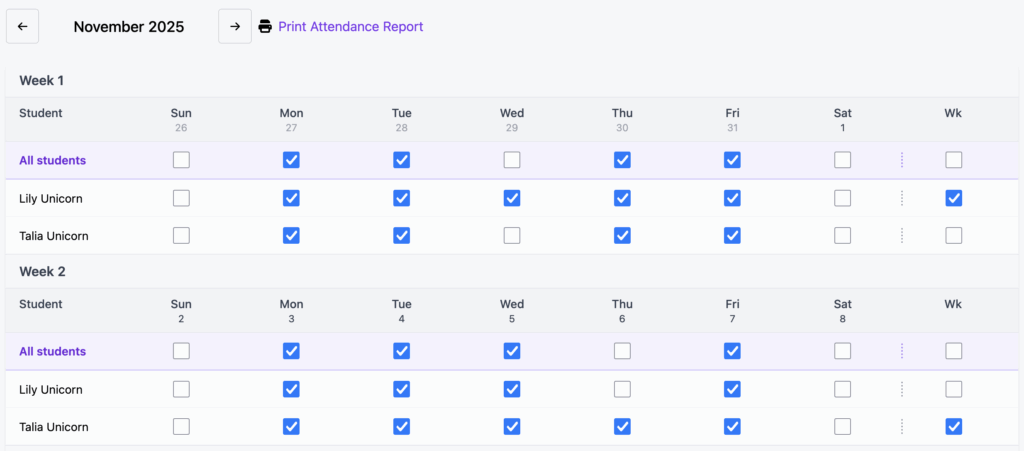
Checking the box in the “All students” row will fill in the attendance date for everyone. Checking the “Wk” (i.e.: “Week”) fills in attendance for the whole week. Otherwise, you can check specific days for specific students. The attendance will save automatically after a moment.
Be sure you are tracking attendance in the correct Academic Year.
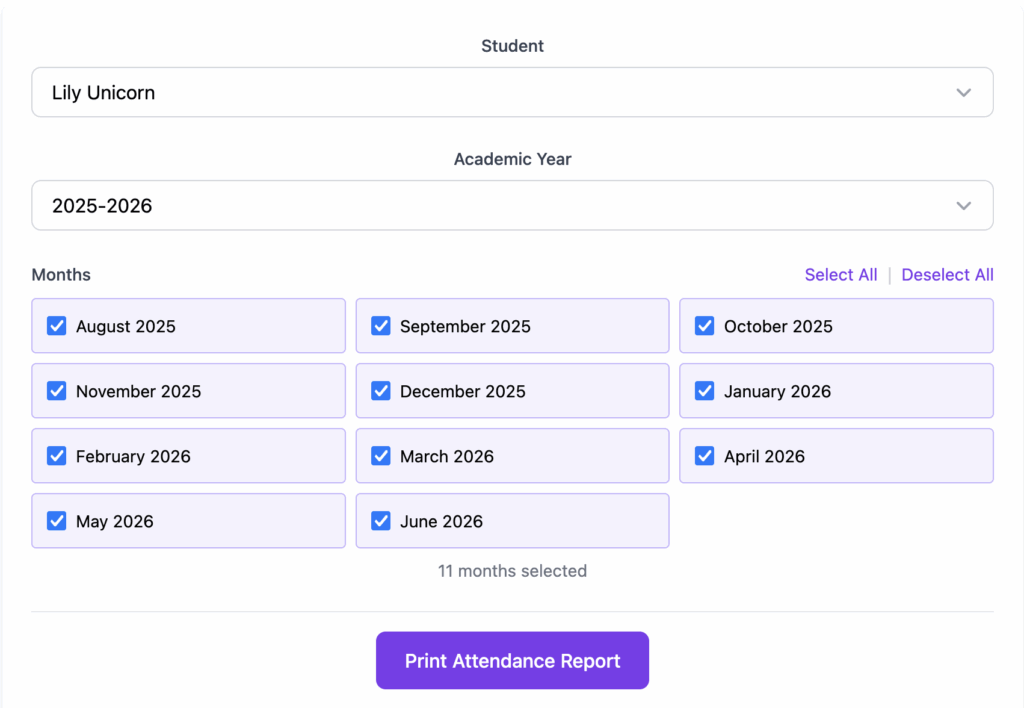
Once you have attendance entered, you can click the Print Attendance Report link

Select the Academic Year and months for which you want to print attendance, and continue.
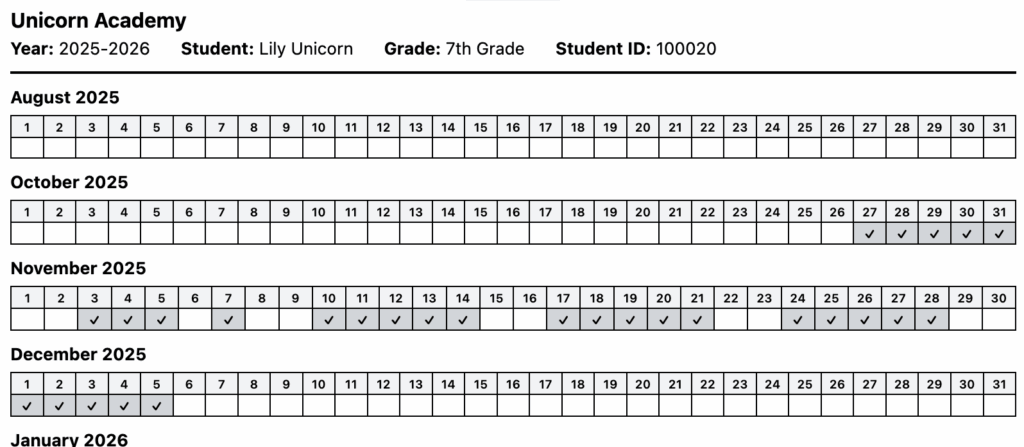
Now you can print your attendance report.
Conclusion
These reports track everything you need to help your students succeed. If you haven’t already, start your trial and check out Scholaright today!
Continue to Getting Started: Part 3, Importing Records
[…] Continue to Getting Started: Part 2, Reports and Transcripts […]
[…] and offer up the many ways Scholaright can help. We heard positive feedback from attendees about our transcripts. Other attendees were amazed to hear that Scholaright costs only $5/month for the whole family. We […]